
Split PDF
This feature allows breaking down one document into several smaller parts according to the specified number of pages or file size. The function makes it easy to archive or share large files.
How to Split a Document
To split a document, open the PDF you want to work with and select Document > Split Document. The Split Document dialog box opens.
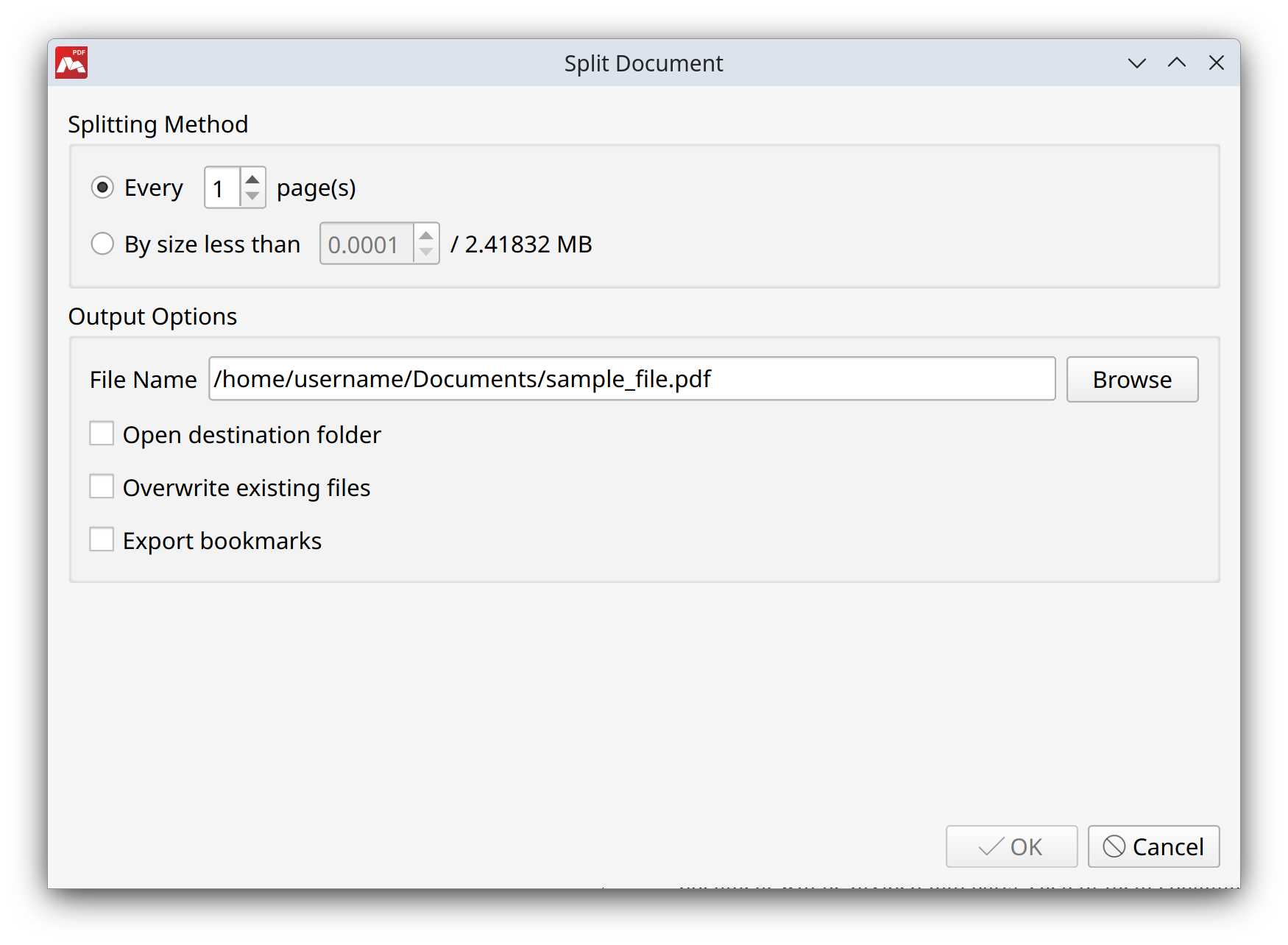
In this window, you can configure the splitting parameters
- Choose one of the splitting methods:
1.1. Select Every … page(s) and enter a number of pages per part. The document will be divided into parts, each of them containing the specified number of pages. The last part might contain fewer pages.
1.2. Or select By size less than … MB and enter the maximum size in MB per part. The document will be split into parts, each of them not exceeding the size limit. The last part might be smaller. - In the File Name field change the name if needed and click the Browse button to choose the destination folder.
- Set any additional options you need (see below).
- Click OK.
When the process finishes, the new files are saved in the chosen folder.
Additional Options
• Open destination folder. Automatically opens the folder with the new files after splitting.
• Overwrite existing files. Replaces files with the same name without asking for confirmation.
• Export bookmarks. Copies bookmarks from the original document to each new file.
 Please consider the following limitations when splitting a document:
• If any page exceeds the size limit, it is still included but without optimization.
• If you cancel the process, no split files are saved.
• Attachments from the original document are not copied to the resulting files.
More like this:
Replace pages
Editing page layout and cropping in PDF
Convert to scanned pages