
Installation and activation using Group Policy Objects
For centralized installation and activation of Master PDF Editor on user computers using Group Policy Objects (GPOs), use the appropriate MSI package:
Master PDF Editor for Windows 7, 8 (32-bit)
Master PDF Editor 64 bit for Windows 7, 8 (64-bit)
Master PDF Editor 64 bit for Windows 10, 11 (64-bit)
The process includes two steps:
- Create a GPO for installing the application.
- Create a GPO for activating the application.
 Create two individual GPOs to ensure correct functioning. Apply the installation GPO before the activation GPO.
Prepare for installation
Before creating GPOs:
- Copy the MSI package to a shared network folder accessible to all target computers.
- Configure access permissions for the shared network folder:
- Open the folder Properties.
- Navigate to Security > Edit > Add.
- In Object Types, enable Computers.
- Add the group containing the target computers.
- Ensure the group has Read and Read & Execute permissions (these are the default).
Create the GPO for installation
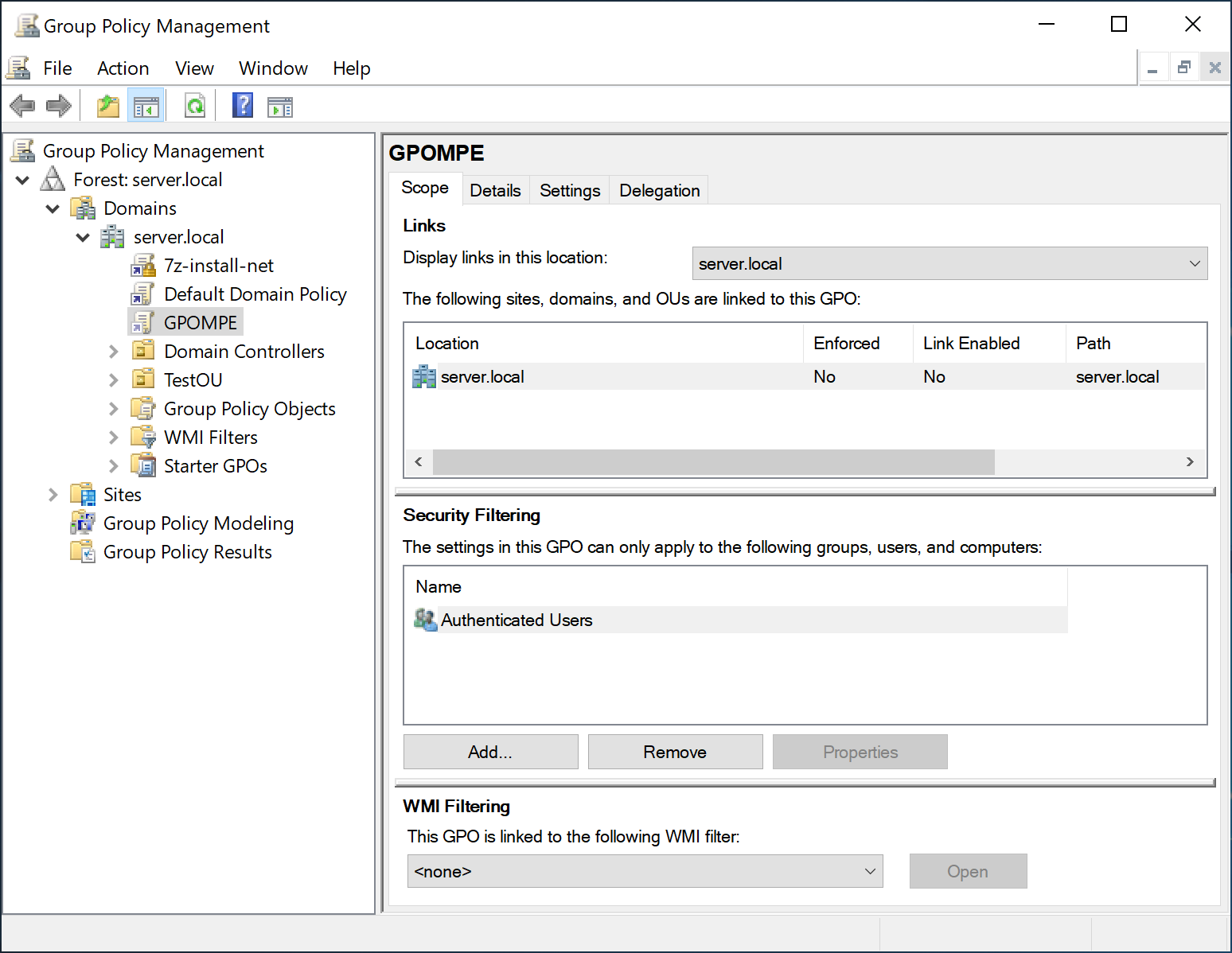
- Open the Group Policy Management Console (gpmc.msc).
- Select the domain containing the computers where you want to install the program.
- Right-click the domain and select Create a GPO in this domain, and link it here…
- Name the GPO, for example, MasterPDFEditor_Installation.
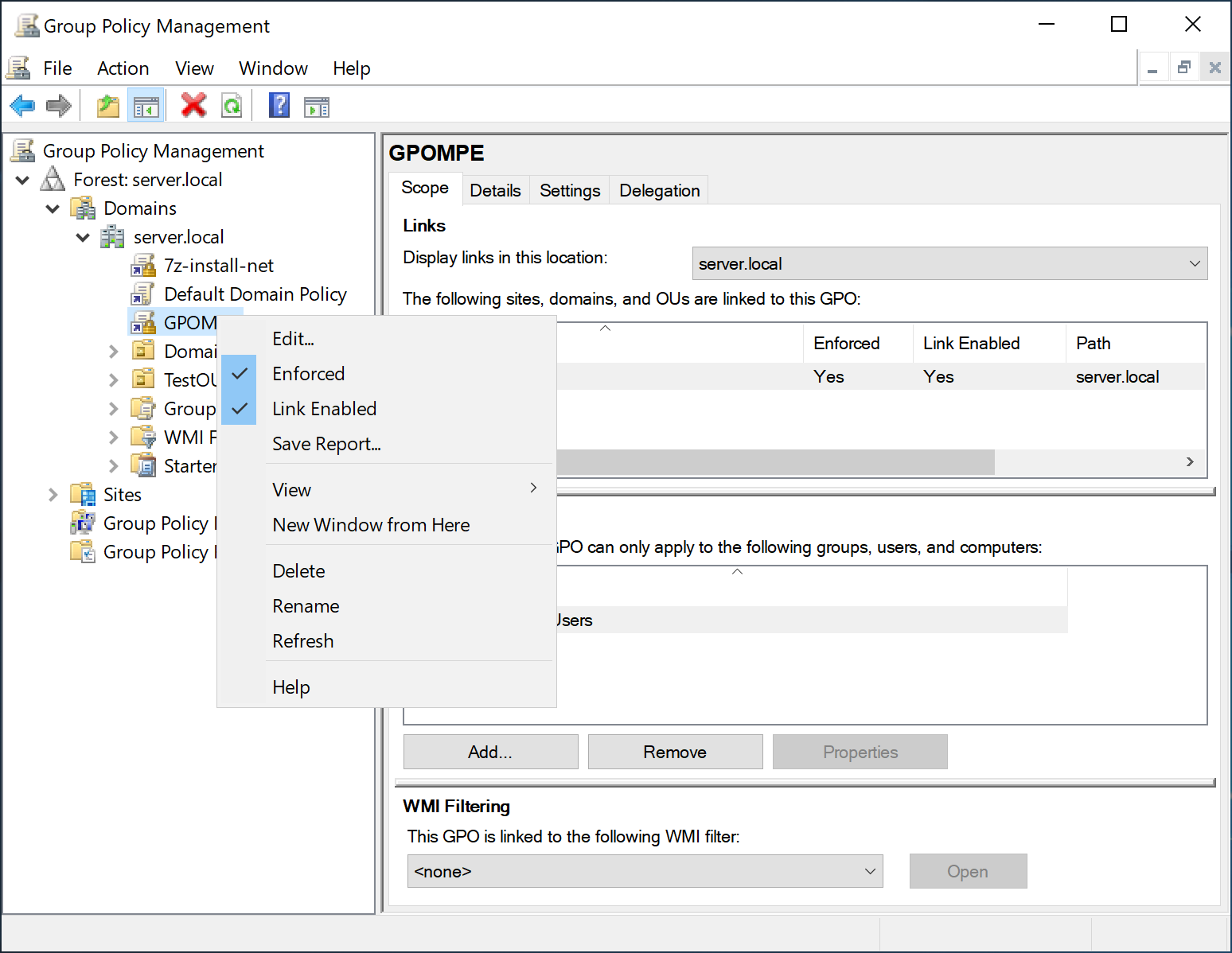
- After creating the GPO, right-click it. In the context menu:
- Make sure Link Enabled is enabled for this GPO (it is enabled by default).
- Optionally enable Enforced if you need the GPO to apply forcibly.
- Click Edit.
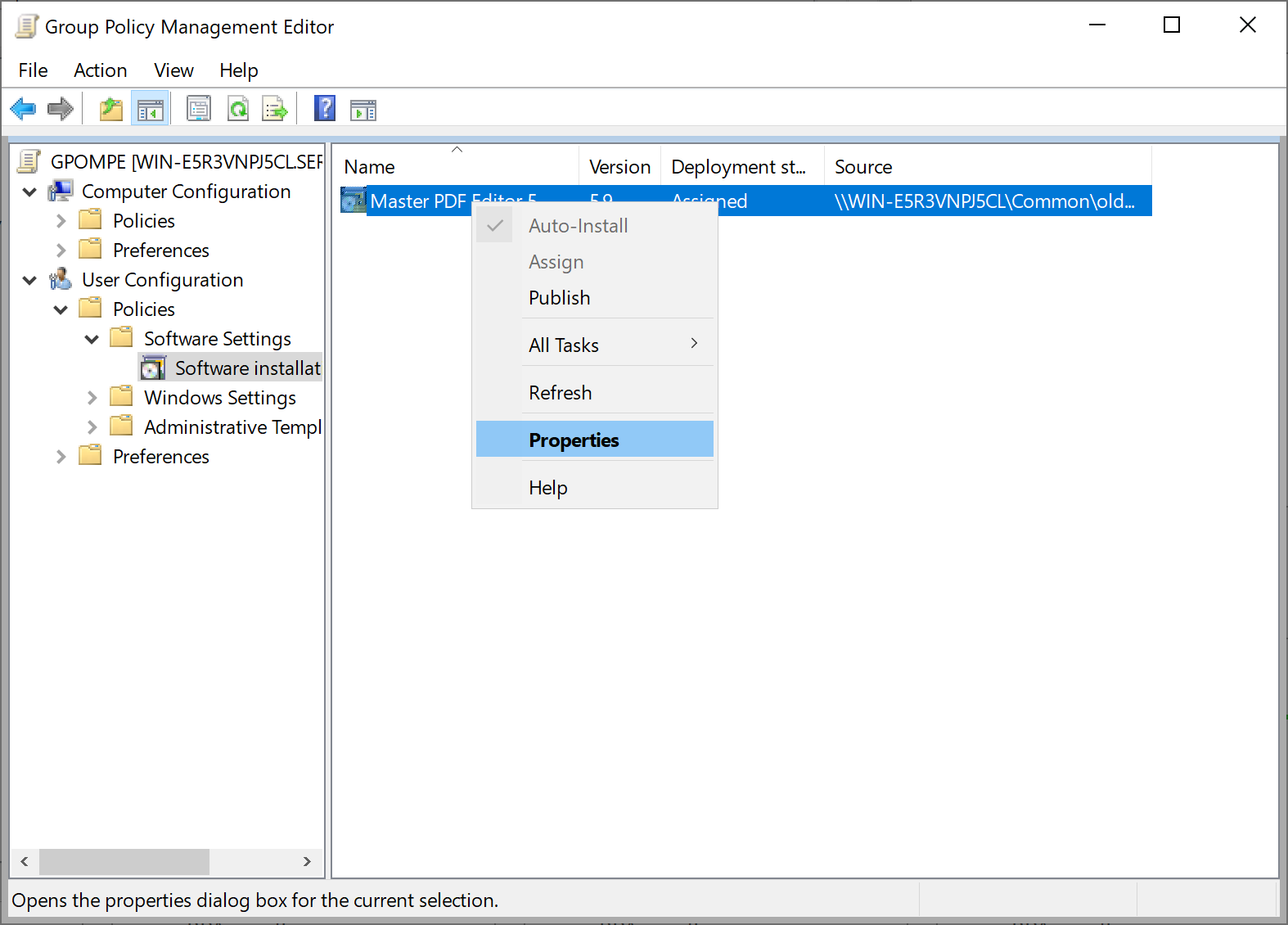
- In the Local Group Policy Editor (gpedit.msc), go to User Configuration > Policies > Software Settings > Software installation.
- In the right pane, right-click and select New > Package…
- Specify the path to the MSI package in the shared network folder.
- After adding the MSI package, open its Properties and go to Deployment:
- Enable Assigned and Install this application at logon, so the program is installed at user logon.
- Click Advanced… and enable Ignore language when deploying this package, so the client OS language is ignored.
- Save the changes and close the gpedit.msc.
Configure logon and startup settings
To ensure the installation runs correctly at user logon, enable network wait at startup:
- In the same GPO, open:
Computer Configuration > Administrative Templates > System > Logon. - Find Always wait for the network at computer startup and logon and set it to Enabled.
- Then open:
Computer Configuration > Administrative Templates > System > Group Policy. - Open Always wait for the network at computer startup and logon and set it to Enabled.
- Select Group Policy.
- Open Specify startup policy processing wait time, set it to Enabled and specify the Amount of time to wait that you require for the startup policy processing.
Create the GPO for activation
After the successful installation, activate the program on user devices:
- Open the gpmc.msc.
- Select the domain containing the computers where you want to install the program.
- Right-click the domain and select Create a GPO in this domain, and link it here…
- Create a new GPO, for example, MasterPDFEditor_Activation.
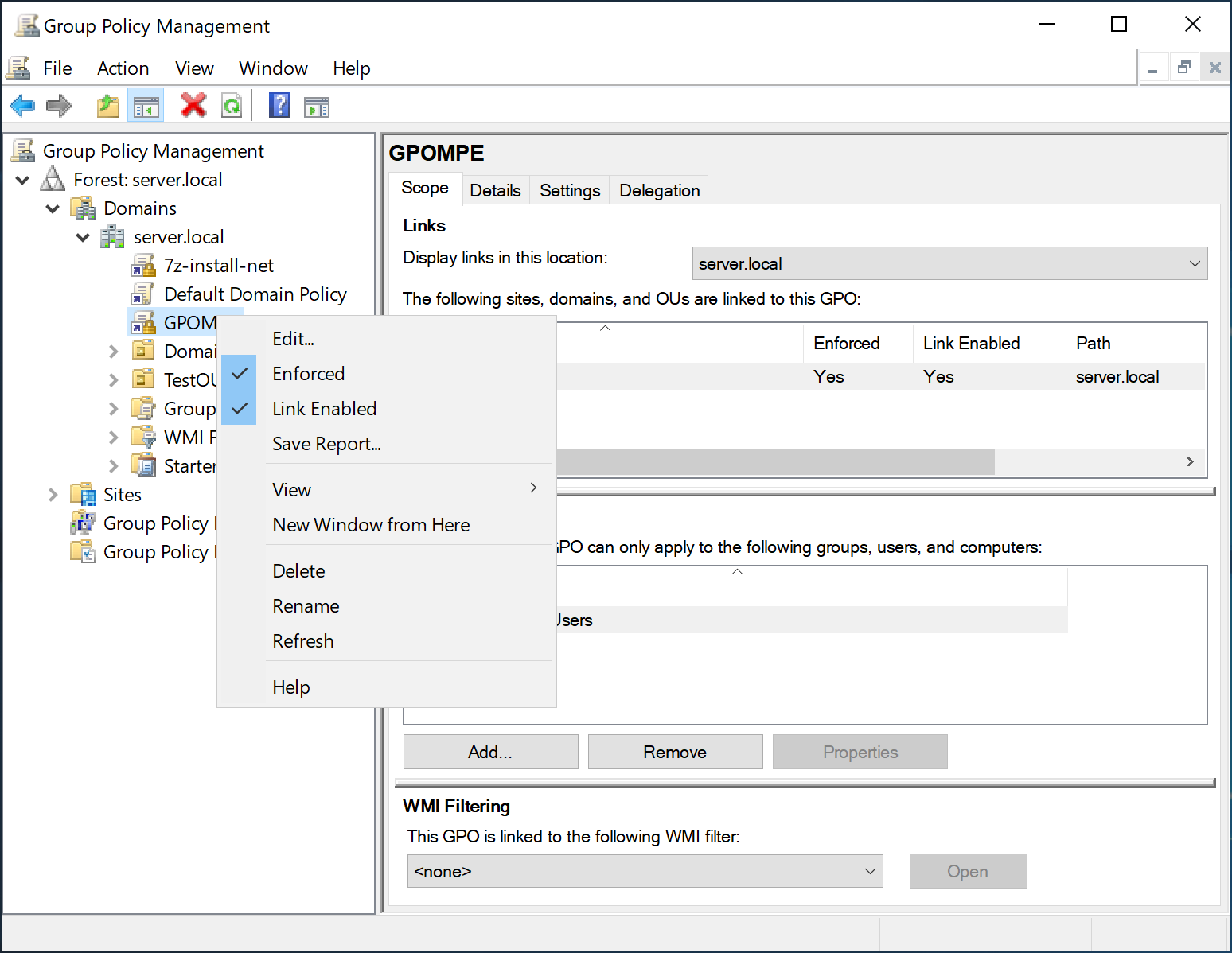
- After creating the GPO, right-click it. In the context menu:
- Make sure Link Enabled is enabled for this GPO (it is enabled by default).
- Optionally enable Enforced if you need the GPO to apply forcibly.
- Click Edit.
- In the gpedit.msc, navigate to:
- In the right pane, right-click Registry and select New > Registry Item.
- Fill in the fields as follows:
- Click OK.
User Configuration > Preferences > Windows Settings > Registry.
| Parameter | Value |
|---|---|
| Action | Update |
| Hive | HKEY_CURRENT_USER |
| Key Path | SOFTWARE\Code Industry\Master PDF Editor 5 |
| Value name | RegistrationCode |
| Value type | REG_SZ |
| Value data | Paste your registration code |
Update Master PDF Editor using GPOs
To install a new version of Master PDF Editor using GPOs:
- Copy the new MSI package to the same shared network folder. Make sure the name of the new package differs from the previous one.
- In the gpmc.msc, open the previously created GPO named MasterPDFEditor_Installation.
- Right-click and select Edit.
- Navigate to:
User Configuration > Policies > Software Settings > Software installation. - Right-click the old MSI package and select:
- All Tasks > Remove…
- Enable Immediately uninstall the software from users and computers and confirm.
- After deleting the old MSI package, add the new MSI package:
- Right-click Software installation > New > Package… and specify the path to the new MSI package.
- In the MSI package Properties > Deployment:
- Enable Assigned and Install this application at logon and click ОK, so the program is installed at user logon.
- Click Advanced… and enable Ignore language when deploying this package, so the client OS
language is ignored.
More like this:
Install Master PDF Editor on Windows
Installing Master PDF Editor on Linux
Installing Master PDF Editor on macOS