
Forms
On the Forms tab, you can configure settings for filling and creating forms in PDF documents.
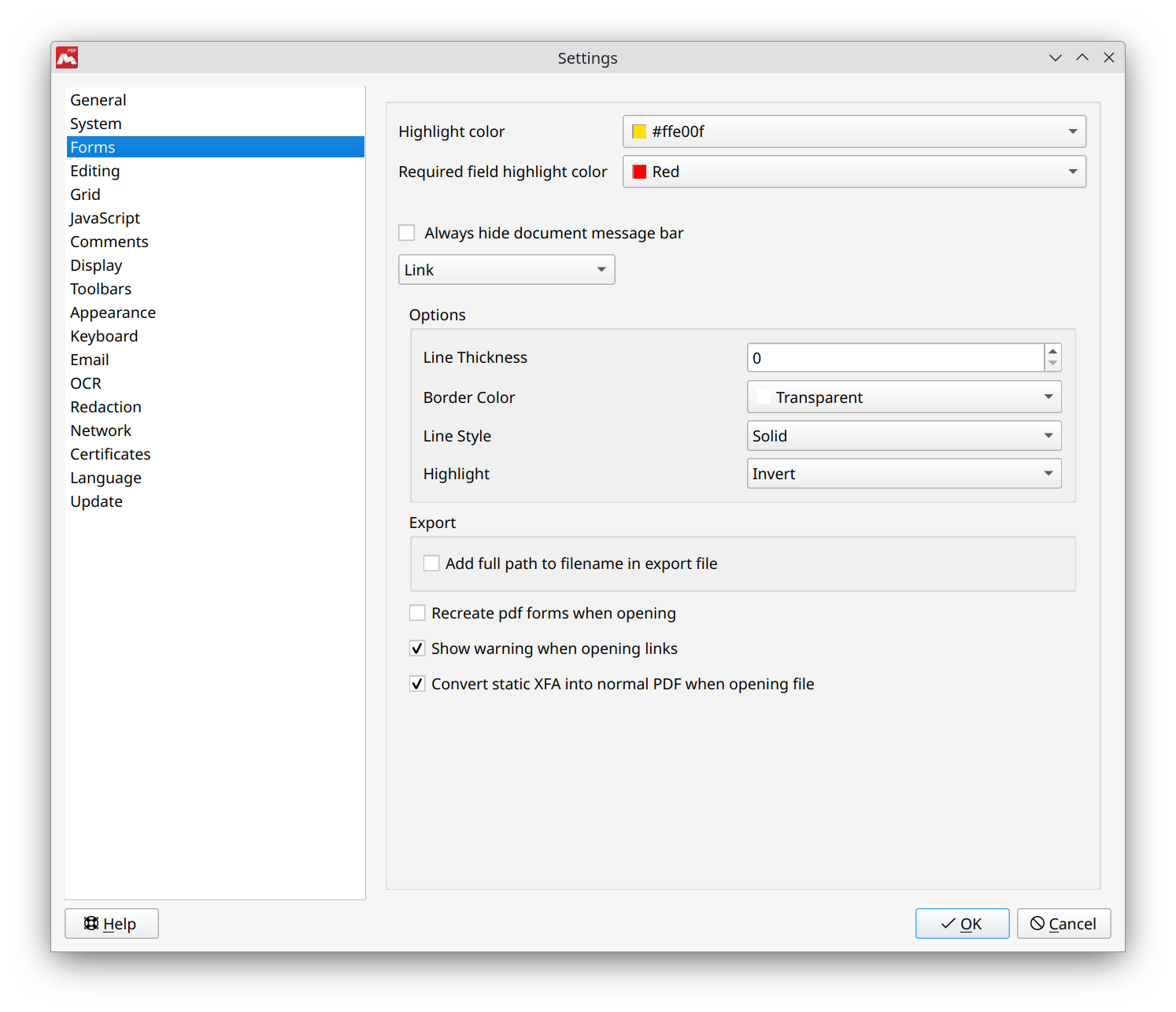
- Highlight color. Set a color for highlighted PDF forms.
- Required field highlight color. Set a color for highlighted required PDF forms.
- Always hide document message bar. Always hide pop up message.
You can set the default settings for newly created PDF forms below on this tab. - Type of form. Select the type of form to use for setting default parameters.
- Link;
- Edit Box;
- Check box;
- Radio button;
- Combo box;
- List box;
- Button;
- Signature.
You can set the default options for newly created PDF forms below on this tab.
- Options. Set default options for creating various forms.
- Line Thickness.
- Border Color.
- Line Style.
- Highlight.
To learn more about other options for PDF forms, see Creating and Modifying Interactive PDF Forms.
- Export.
- Add full path to filename in export file. Set a file name when exporting form information.
Settings for opening documents with forms:
- Recreate PDF forms when opening. This option allows you to avoid display errors of some forms, but slows down the opening of files when enabled.
- Show warning when opening links. If enabled, a warning notice appears when links are opened.
- Convert static XFA into normal PDF when opening file. If this option is enabled, static XFA forms are automatically converted into standard PDF form format. This allows you to properly fill out and edit the form fields. If the option is disabled, forms can still be filled out, but editing is not possible.
 When enabled, XFA data will be removed from the document structure after saving. When disabled, XFA data remains in the document, and filled forms will display correctly in third-party applications.
If the document contains XFA forms and the Convert static XFA into normal PDF when opening file option is disabled, the following features will be unavailable:
- Exporting pages to Text, Excel, CSV, or Word formats;
- Extracting all images from the document;
- Converting the document to PDF/A.
To use these features, it is recommended to enable this option when opening the document.
Application relaunch is required for settings to take effect.
Use Forms > Highlight Forms (Ctrl + H) for forms selection or forms selection reset. (For macOS X: Cmd+H).